

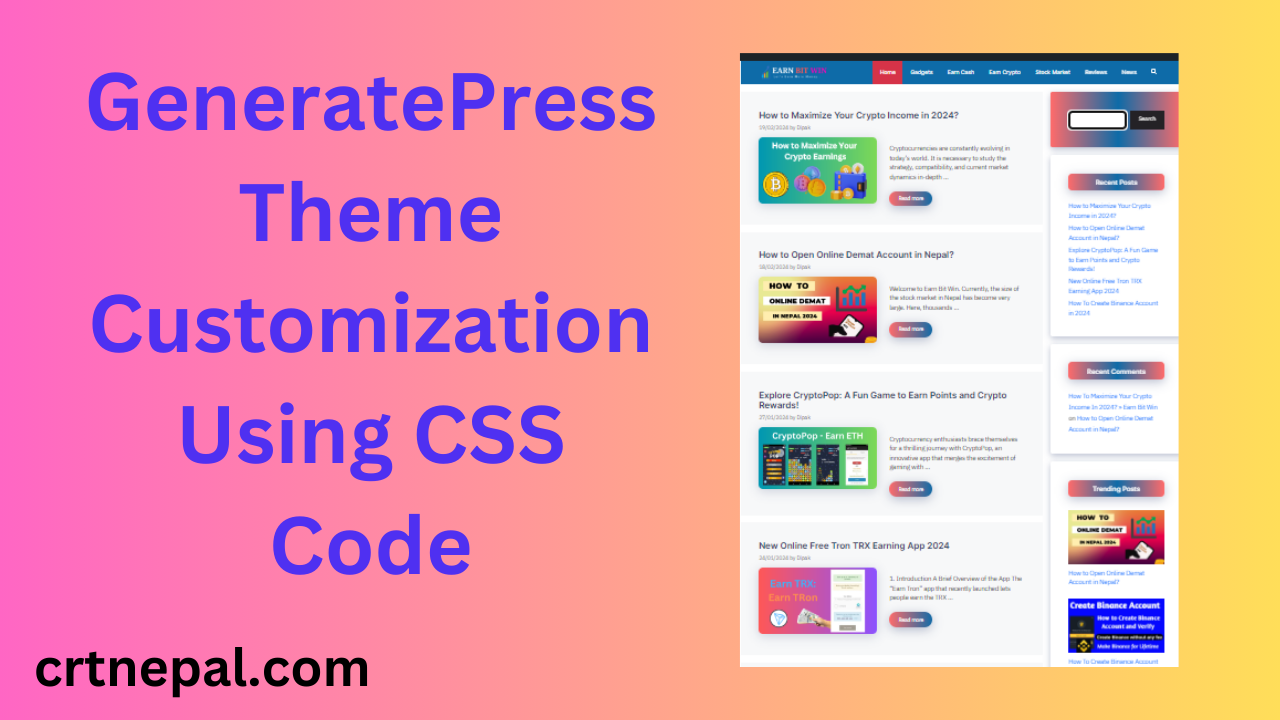

This article is about customizing the GeneratePress theme to make your website look better, be more search engine- and ad-friendly, and load faster.
When starting a blog, people usually just get a domain and hosting. They don’t invest in a premium theme, probably because of the high price.

However, using GeneratePress Premium is a good option. It’s lightweight and made to be AdSense-friendly. The default design is basic, though.
We created some custom CSS code to improve the GeneratePress design for free. It makes the theme look more modern and optimized for speed.
To use it:
- Log in to your WordPress dashboard
- Go to Appearance > Customization
- Paste the CSS code into the Additional CSS section
- Publish the changes
- Clear your cache and refresh your site
CSS Code
The new design should now be applied. Be sure to backup your site first in case you need to revert.
.page-header-image-single .attachment-full {
    box-shadow: rgba(23, 43, 99, .3) 0 7px 28px;
    border-radius: 25px;
}
.entry-content h2, h3, h4, h5, h6 {
    font-weight: 600;
    padding: 10px 10px 10px 25px;
    background-image: linear-gradient(to right, #FF6B6B 0%, #64B5F6 51%, #FF6B6B 100%);
    border-radius: 10px;
    color: white!important;
    box-shadow: rgba(23, 43, 99, .3) 0 7px 28px;
}
.entry-content h2 {
    font-size: 25px!important;
}
.entry-content h3 {
    font-size: 21px!important;
}
.entry-content h4 {
    font-size: 17px!important;
}
.entry-content h5 {
    font-size: 15px!important;
}
.entry-content h6 {
    font-size: 13px!important;
}
.comment-respond .comment-reply-title {
    padding: 10px 10px 10px 25px;
    background-image: linear-gradient(to right, #FF6B6B 0%, #64B5F6 51%, #FF6B6B 100%);
    border-radius: 10px;
    font-weight: 600;
    color: white!important;
    font-size: 22px!important;
    box-shadow: rgba(23, 43, 99, .3) 0 7px 28px;
}
.widget-title {
    padding: 10px 10px;
    background-image: linear-gradient(to right, #FF6B6B 0%, #64B5F6 51%, #FF6B6B 100%);
    border-radius: 10px;
    font-weight: 500;
    color: white!important;
    font-size: 18px!important;
    text-align: center;
    box-shadow: rgba(23, 43, 99, .3) 0 7px 28px;
}
.sidebar .widget {
    box-shadow: rgba(23, 43, 99, .3) 0 6px 18px;
    border-radius: 5px;
}
.sidebar .widget:first-child {
    background-image: linear-gradient(to right, #FF6B6B 0%, #64B5F6 51%, #FF6B6B 100%);
}
.button.light {
    background-color: #fff;
    border-radius: 50px;
    font-weight: 700;
    color: #333;
}
.button.light:hover {
    background: #333;
    color: #fff;
}
@media (min-width: 769px) {
    .post-image-aligned-left .post-image img {
        margin-top: -20px;
        border-radius: 12px;
        box-shadow: rgba(23, 43, 99, .2) 0 7px 28px!important;
    }
}
@media (max-width: 768px) {
    .post-image-aligned-left .post-image img {
        margin-top: -20px;
        border-radius: 12px;
        box-shadow: rgba(23, 43, 99, .2) 0 7px 28px!important;
    }
}
@media (min-width: 769px) {
    .site-content {
        display: flex;
    }
    .inside-right-sidebar {
        height: 100%;
    }
    .inside-right-sidebar aside:last-child {
        position: -webkit-sticky;
        position: sticky;
        top: 10px;
    }
}
a.read-more.button {
    background-image: linear-gradient(to right, #FF6B6B 0%, #64B5F6 51%, #FF6B6B 100%);
}
a.read-more.button {
    font-size: 14px;
    padding: 10px 25px;
    text-align: center;
    transition: 0.5s;
    background-size: 200% auto;
    color: white;
    box-shadow: rgba(23, 43, 99, .3) 0 7px 28px;
    border-radius: 120px;
}
a.read-more.button:hover {
    background-position: right center;
    color: #fff;
    text-decoration: none;
}
blockquote {
    background: #dcdcdc54;
    border-left: 5px solid #FFD700;
    padding: 15px;
    font-style: inherit;
    font-size: 18px;
    margin: 0 0 1.5em;
}
.comment-form #submit {
    background-image: linear-gradient(to right, #FF6B6B 0%, #64B5F6 51%, #FF6B6B 100%);
    border-radius: 10px;
    box-shadow: rgba(23, 43, 99, .3) 0 7px 28px;
    color: white !important;
    padding: 10px 20px;
}
.comment-form #submit:hover {
    background: #64B5F6;
    color: #fff;
}
Here are some suggested next steps after applying the custom CSS code to your GeneratePress theme:
Test and Verify
- Clear your cache and hard reload your site to view the changes. Test on both desktop and mobile to ensure responsiveness.
Check for Issues
- Look for any visual glitches, style breaks, or other issues on all site pages. Revert CSS if major problems found.
Review Speed
- Use a tool like Pingdom or GTmetrix to test your site speed after the CSS changes. Revert if there are significant performance impacts.
Optimize Images
- With the new design, some images may need edited or cropped for the best fit. Optimize sizes for faster loads.
Tweak as Needed
- You may wish to tweak the custom CSS further if any elements need adjusting for the perfect fit. Comments in code can assist.
Promote Your Updated Site
- With the new polished look, focus on content and promotion to leverage the improved design and customizations.
Maintain and Update
- As you make future WordPress changes, periodically check that your custom CSS still aligns properly with any theme or plugin updates.
I hope these next-step suggestions help you get the most out of your new GeneratePress theme customizations! Let me know if you have any other questions.